 ResumeWay
Your resume, tailored in a side panel
Open a job, press the ResumeWay button, and a side panel shows what the job asks for that your resume doesn’t, then tailors your own PDF for it. It also lets the web app fill in applications in your browser. You always press Submit.
For Chrome, Edge, Brave and other Chromium browsers on a computer. You sign in with Google first; ResumeWay keeps only your name and email for it.
You’re signed in. Press Download again.
Extensions work on a computer in Chrome, Edge or Brave. On a phone, use the web app.
Install it
The extension is in beta and isn’t in the Chrome Web Store yet, so you add it yourself. It takes a minute, once.
Download and unzip
Download the extension above and unzip it. Keep the folder somewhere it can stay, such as Documents: the browser loads it from there.
Open the extensions page
In Chrome go to chrome://extensions; in Edge, edge://extensions; in Brave, brave://extensions.
Turn on Developer mode
Use the switch at the top right (in Edge, on the left).
Load it
Click Load unpacked and choose the unzipped folder (the one with manifest.json in it).
Pin it
Click the puzzle piece in the browser’s toolbar and pin ResumeWay, so its button is always there.
Allow it on job sites
A ResumeWay page opens by itself. Click Allow on job sites and confirm: that covers Greenhouse, Lever, Ashby, Workday, SmartRecruiters and iCIMS. Any other site asks once: in the side panel, or the first time you fill an application there.
Open a job and press ResumeWay
The side panel opens next to the page. The first time, add your resume there (a PDF keeps its own look); it stays in your browser. Then you see what the job asks for, and Tailor for this job. The side panel needs Chrome 116 or newer.
Updating
Download the new version, unzip it over the old folder, and click the reload arrow on ResumeWay in the extensions page (chrome://extensions). The web app’s sidebar shows the new version once it’s done.
Check the file (optional)
SHA-256 of resumeway-extension.zip:
43528731e070d91e958a0388e630229c60d3e785c9d111d71ee779120717c8b5
Your browser, working for you, with you watching.
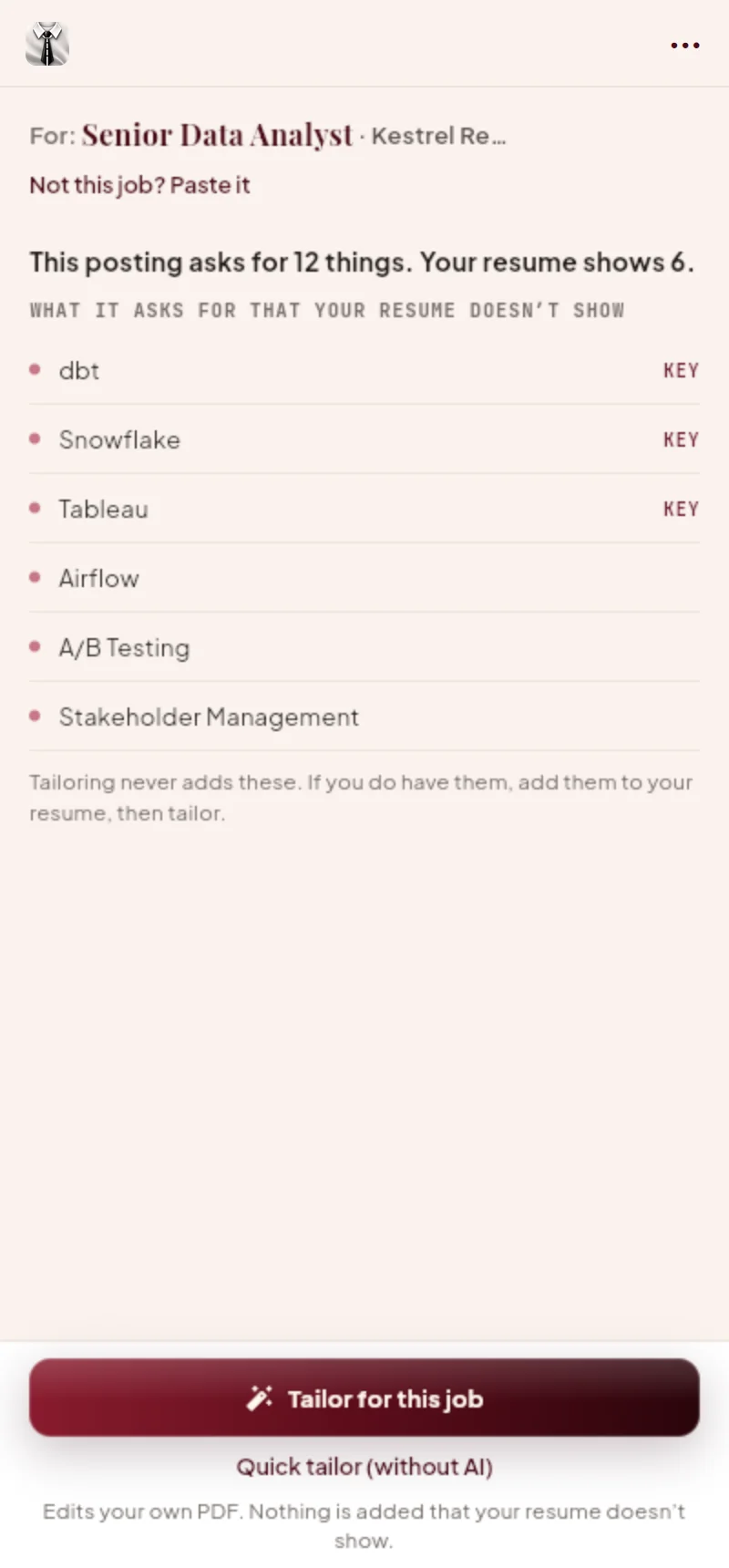
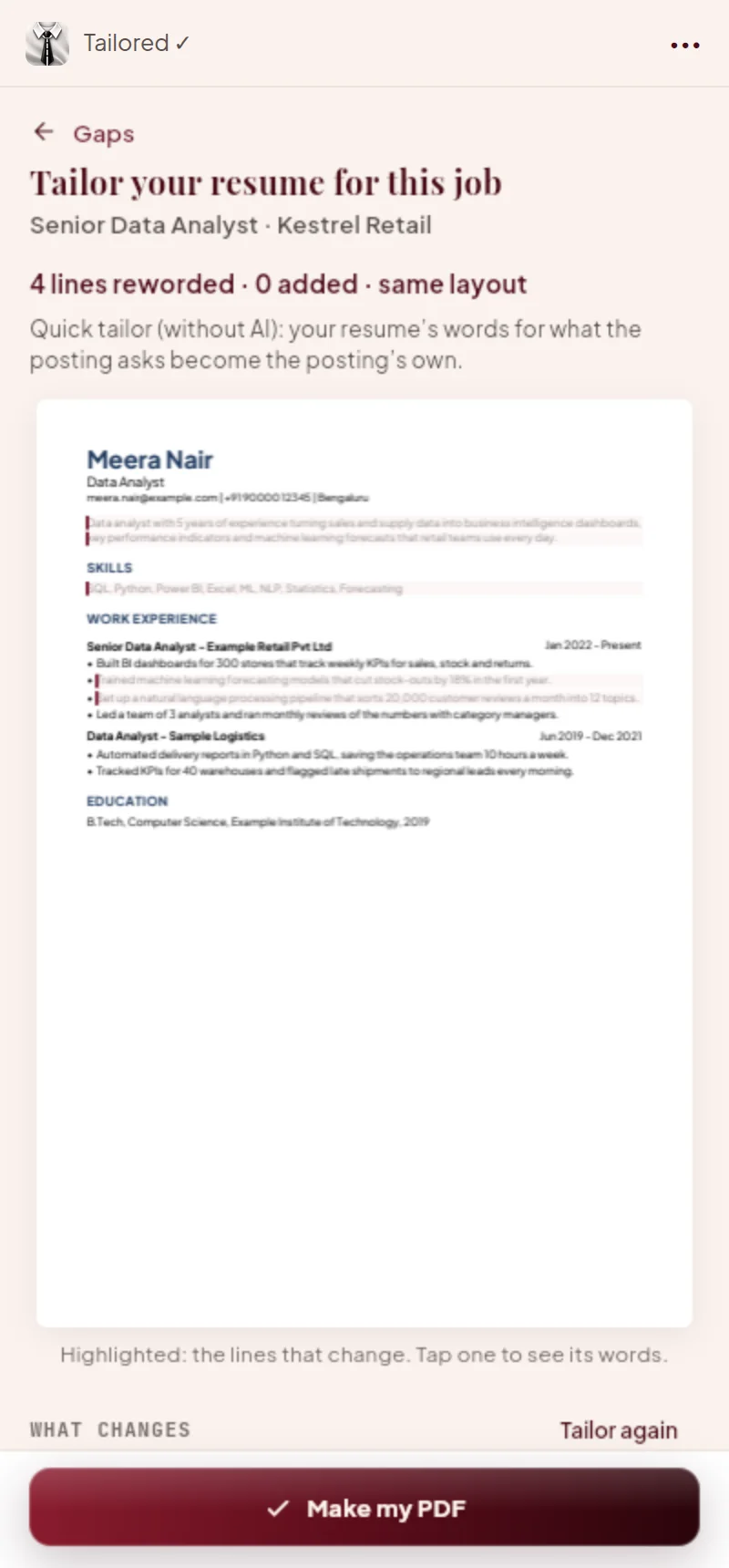
Tailors your resume for the job you’re on
On any job page, the side panel compares the posting with your resume, then rewords your own PDF in the job’s words, in its own layout and fonts. Nothing is added that your resume doesn’t show, and you see every change before you download.
Fills company forms
Greenhouse, Lever, Ashby and other company forms open in a tab, filled from your profile and answers, with your resume attached. You check the form and press Submit, in the tab or from the web app.
Steps through job sites
On LinkedIn Easy Apply, Naukri, Indeed and company portals it presses Apply and Next and fills each step, then stops at the site’s final Submit for you. You’re already signed in, because it’s your browser.
Permissions, in plain words
When you load it, the browser shows what the extension may do. It doesn’t ask for every website: only the ResumeWay site at first, then each job site when you allow it. Here’s why it needs each permission, and what it never does.
- Read and change data on the ResumeWay site. So the web app can talk to it.
- Job sites you allow. Filling in a form means typing into the page. The common job-site families are allowed with one click after install; any other site asks you first: in the side panel’s header, or in a small window the first time you fill an application there. The extension fills only in tabs it opened itself when you pressed Apply or Check job portals in the ResumeWay web app. You can take a site back any time on its “Job sites ResumeWay may work on” page or in the browser’s extension settings.
- Side panel. To show the web app next to the page you’re on. While it’s open, it reads the job posting in the tab you’re looking at, on sites you allowed, and nothing else: no clicking, typing or filling there.
- Tabs. To open the application in a new tab, notice when the page has loaded, bring the tab (or the web app) to the front when it needs you, and let the side panel follow the tab you’re looking at. The browser describes this as reading your browsing history; the extension only looks at the tabs it opened and, while the side panel is open, the one you’re looking at.
- Scripting. To run ResumeWay’s own form filler and page readers: the same code the Android app uses. It never runs code from anywhere else.
- Storage. To remember which tabs it opened, until you close the browser, and the sites you said no to.
It only takes requests from the ResumeWay web app at resumeway.co (and its first address, resumeway.bobinjacob46.workers.dev). It doesn’t read your browsing history and sends nothing to us or anyone else: what it reads from a form or a posting goes only to the web app in your browser. (The web app can send counts of what you do in the side panel, never the job or your resume, and only if you say yes.) It never presses a job site’s final Submit and never touches a CAPTCHA. See the privacy policy.
Firefox, Safari and phones
Extensions work on a computer in Chrome, Edge or Brave. In other browsers the web app gives you an apply kit instead: every answer ready to copy, and your resume to attach. On a phone, the Android app fills forms itself.